JPG to STL
Turn a JPG or JPEG photo into an STL file. Make a relief that turns light and dark into height, free in your browser, or let the AI build a full 3D model of the pet, person or object in the photo. This JPG to STL converter smooths JPEG noise and sets the size in millimetres.
Made in your browser. Your image is not uploaded.
How to turn a JPG into an STL
- 01
Add your JPG
Any JPG or JPEG from a phone or camera works. A sharp photo with good contrast between the subject and the background gives the cleanest result.
- 02
Choose relief or 3D model
Relief makes a plate where light and dark become height, right here in your browser. 3D model opens the workspace, where the AI builds the subject in the round.
- 03
Set the size and download
Set the width and thickness in millimetres, check the preview from a few angles, then download the STL and open it in your slicer.
JPG to STL examples
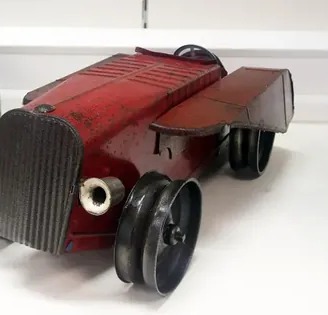
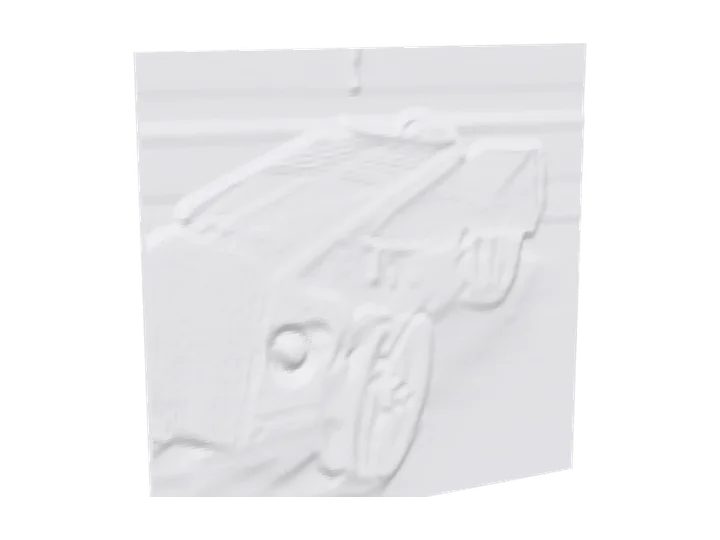
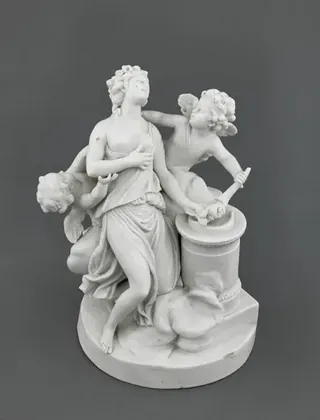
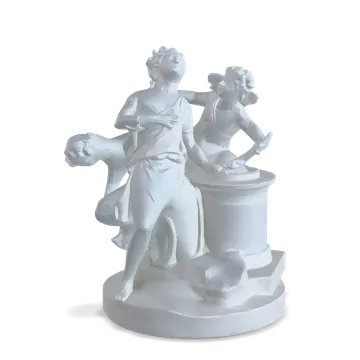
Photos turned into reliefs with the tool on this page, and into 3D models with Standard quality.
- Toy car photo reliefRelief
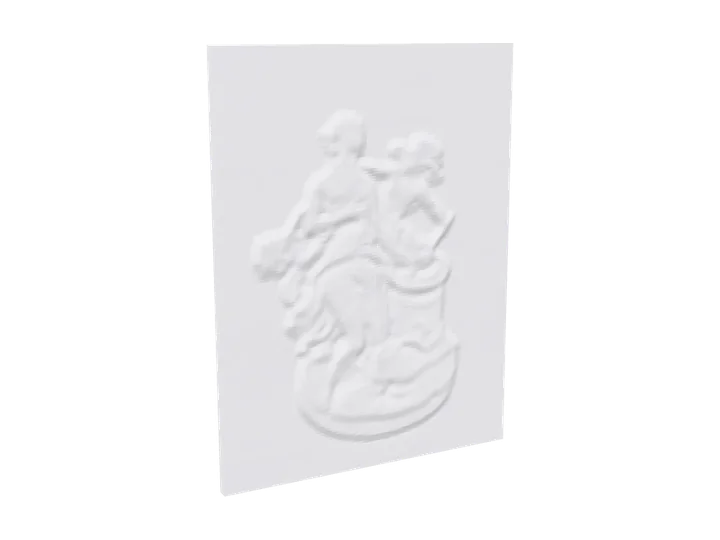 Figurine photo reliefRelief
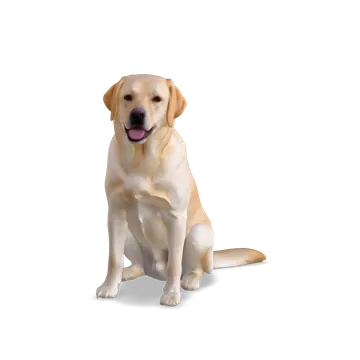 Yellow Labrador3D model
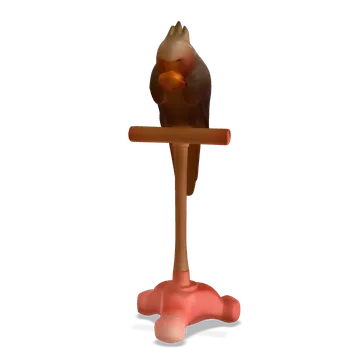 Parrot on a perch3D model
- Porcelain figurine3D model
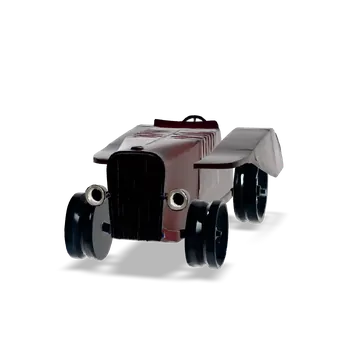 Old toy car3D model
What a JPG photo turns into
The same photo can become two very different prints. Here is how to choose.
Relief: a carved picture
Every pixel becomes a height. Dark areas stand up and light ones stay low, or the other way round. It reads best from the front, like a coin or a carved plaque.
3D model: the whole subject
The AI builds the subject in the round, sides and back included, from one photo. Use it for a pet, a toy or a figurine you want to print standing up. 3D print from photo walks through printing it.
Portraits
Faces as a relief look best in soft, even light with smoothing at 2. For a figurine of a person, use Photo to figurine in the workspace, with their permission.
Objects and products
A clear photo of an object on a plain background gives the AI the most to work with. Shoot from the front or at a three-quarter angle.
JPEG tips for a clean STL
Save at high quality
JPEG compression adds blocky noise, and a relief turns it into bumps. Export at 90% quality or higher, or use the original file from your camera.
Use smoothing
Smoothing at 1 or 2 softens JPEG blocks and grain before they become height. Set it to 0 only for line art scanned as JPG.
Raise the contrast first
A flat, grey photo makes a flat plate. Increase contrast in your photo app so the subject stands apart from the background.
iPhone photos
Most browsers can’t read HEIC. Share the photo as a JPG, or set Camera, Formats to Most Compatible so new photos save as JPEG.
Relief settings for photos
Photos have far more shades than drawings. These starting points keep a photo relief readable.
Relief 1.5 to 2.5 mm
Photos need less height than line art. Too much relief turns skin and sky into ridges; 2 mm on a 100 mm plate is a good start.
Smoothing at 2
It removes JPEG blocks and sensor grain while keeping eyes, edges and lettering. Go back to 1 if the result looks soft.
Wider plates show more
Detail is set by how many points fit across the plate. A 120 mm plate at Fine detail shows a face far better than a 50 mm one.
Print it upright for light
Lay a relief flat for a plaque. For a window or lamp piece, stand it upright and print in white so light shows through the thin parts.
What JPG to STL can’t do yet
A relief is not true depth
A relief turns brightness into height, so a dark shirt sticks out more than a pale face. For the real shape of the subject, make a 3D model. Image to STL compares the two side by side.
The back of a 3D model is guessed
One photo shows one side. The AI fills in the rest, so anything on the back of the subject will not appear.
Busy backgrounds become bumps
Everything in the frame becomes height in a relief. Crop the photo to the subject before you add it.
No colour in the STL
An STL holds shape only. Paint the print, or swap filament at a set height for a second colour.
JPG to STL FAQ
Is JPG to STL free?
A relief is free to make and download, with no account. A 3D model can be previewed free twice a day; downloading it needs a Credit Pack or a plan, from $9.90 a month.
Is JPG different from JPEG?
No. JPG and JPEG are the same format with two file extensions, and both work here.
Is my photo uploaded?
Not for a relief: it is made inside your browser. For a 3D model the photo is uploaded and processed in the cloud, deleted after 7 days and never used to train AI.
Can I make a lithophane from a JPG?
A lithophane is a thin plate lit from behind, where dark areas are thicker. A relief does that by default, so a 0.8 mm plate with 2 to 3 mm of relief, printed upright in white PLA, works as a simple flat lithophane.
What resolution should my JPG be?
For a 3D model, 1,000 pixels or more on the long side. For a relief, the tool samples the photo to 320 or 480 points across, so very large photos don’t add detail.
How big can I print it?
Reliefs from 20 to 300 mm wide. 3D models at whatever height you set; large prints simply take longer and use more filament.
Will my JPG to STL file be watertight?
Yes. Reliefs are checked before you download them, and Standard 3D models came out watertight in our tests.
Can I edit the STL afterwards?
Yes. Any slicer can scale or rotate it, and mesh editors such as Blender can change it further.
Can I use a screenshot or a scan?
Yes. Screenshots and scans are usually PNG or JPG and both work. Line art scanned as JPG makes a crisp relief with smoothing at 0.
What about PNG or WebP photos?
They work the same way. A PNG with a transparent background is handled differently: its solid parts are raised, as the PNG to STL page explains.
Why does my relief look noisy?
JPEG compression blocks and camera grain both turn into height. Raise Smoothing to 2 or 3, crop away busy backgrounds, and start from the best-quality copy of the photo you have. A photo with stronger contrast also needs less relief height to read well.